
Kovalink 实用指南
三步开始:安装、登录、连接。每一步都有截图对照;遇到问题,看最后一节。
1. 安装
- iPhone / iPad:通过 TestFlight 邀请安装:先在 App Store 安装 TestFlight,再打开邀请链接 https://testflight.apple.com/join/tMSkMWED,点「安装」。上架 App Store 后,直接搜索「Kovalink」即可。
- Mac:打开 https://kovalink.app/download/mac,下载会自动开始。打开 DMG,把 Kovalink 拖进「应用程序」。第一次打开时 macOS 提示「来自互联网」,点「打开」即可(已通过 Apple 公证)。
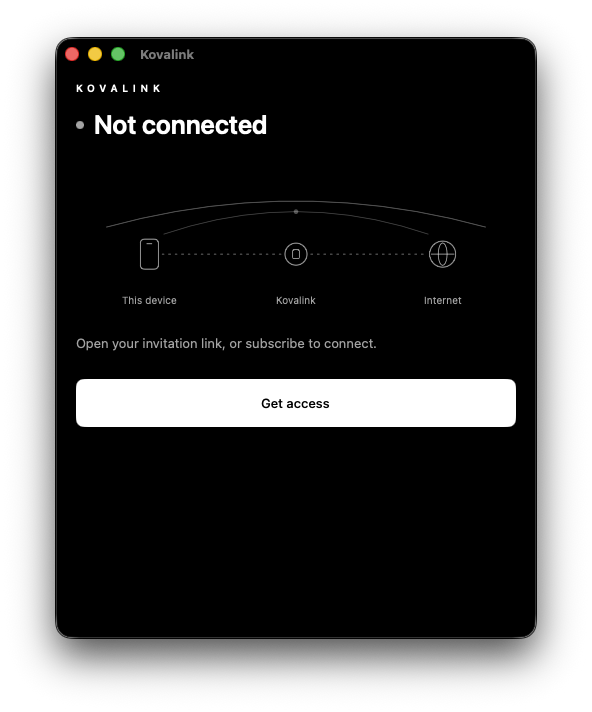
2. 登录
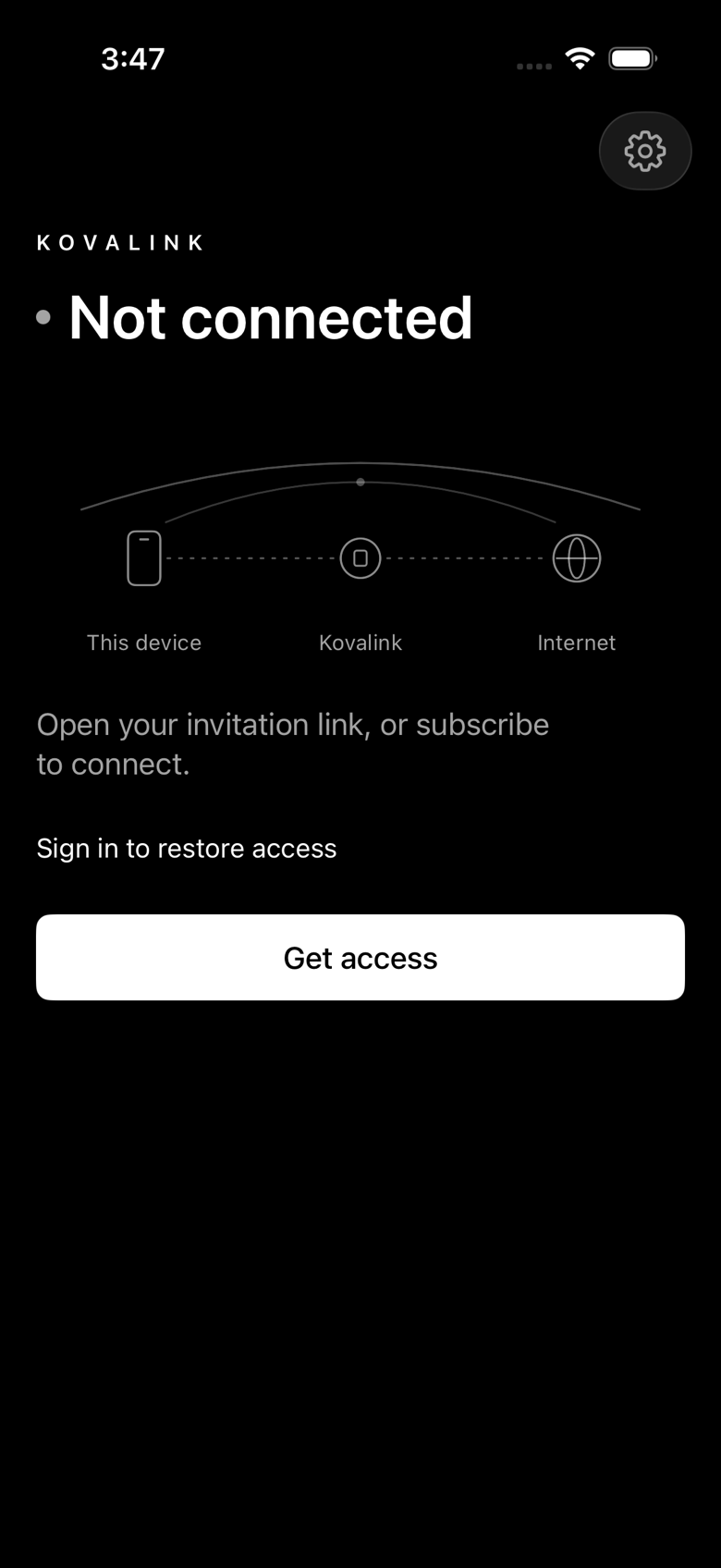
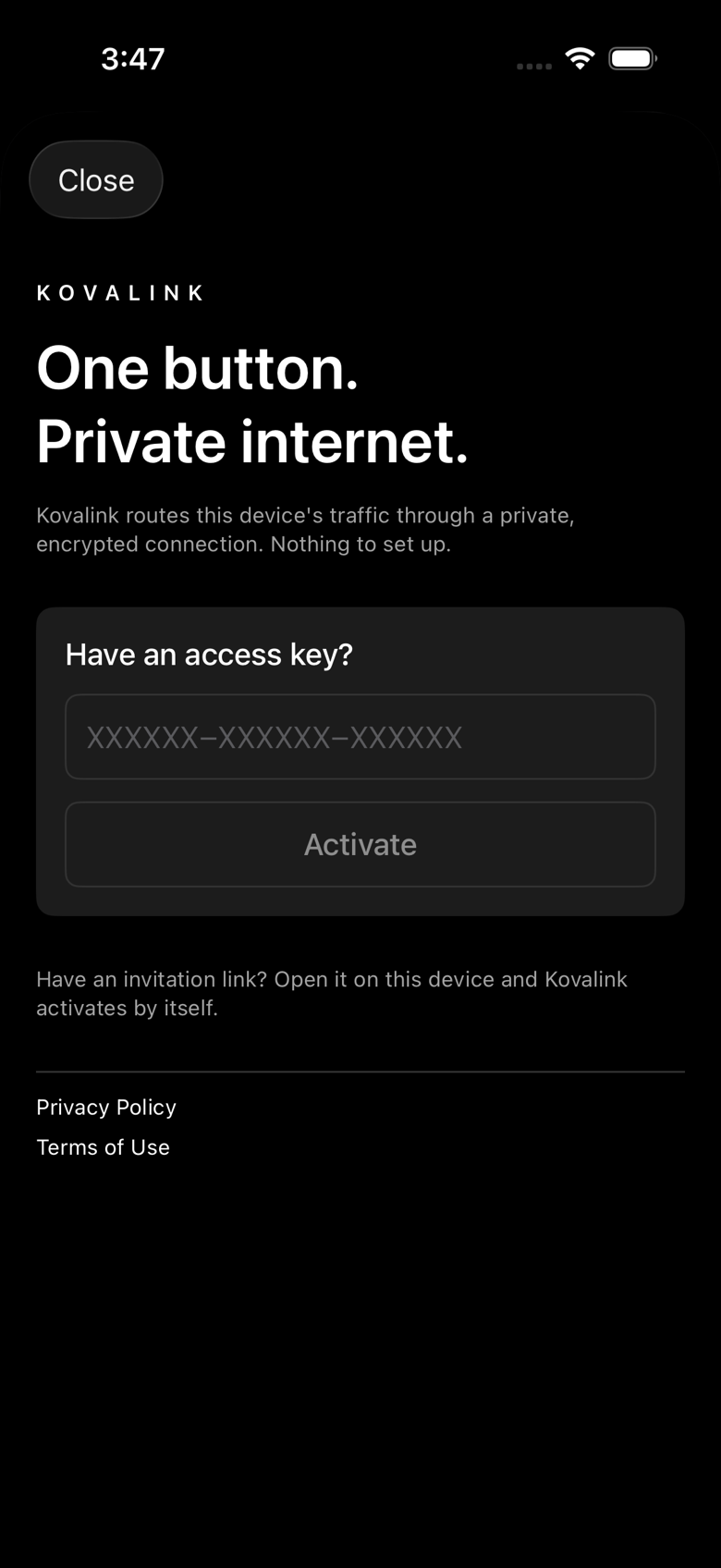
打开 Kovalink,点「Get access」,用邮箱验证码登录(也可以用 Google 或 Whop)。收到邀请码的,登录后直接粘贴邀请链接。
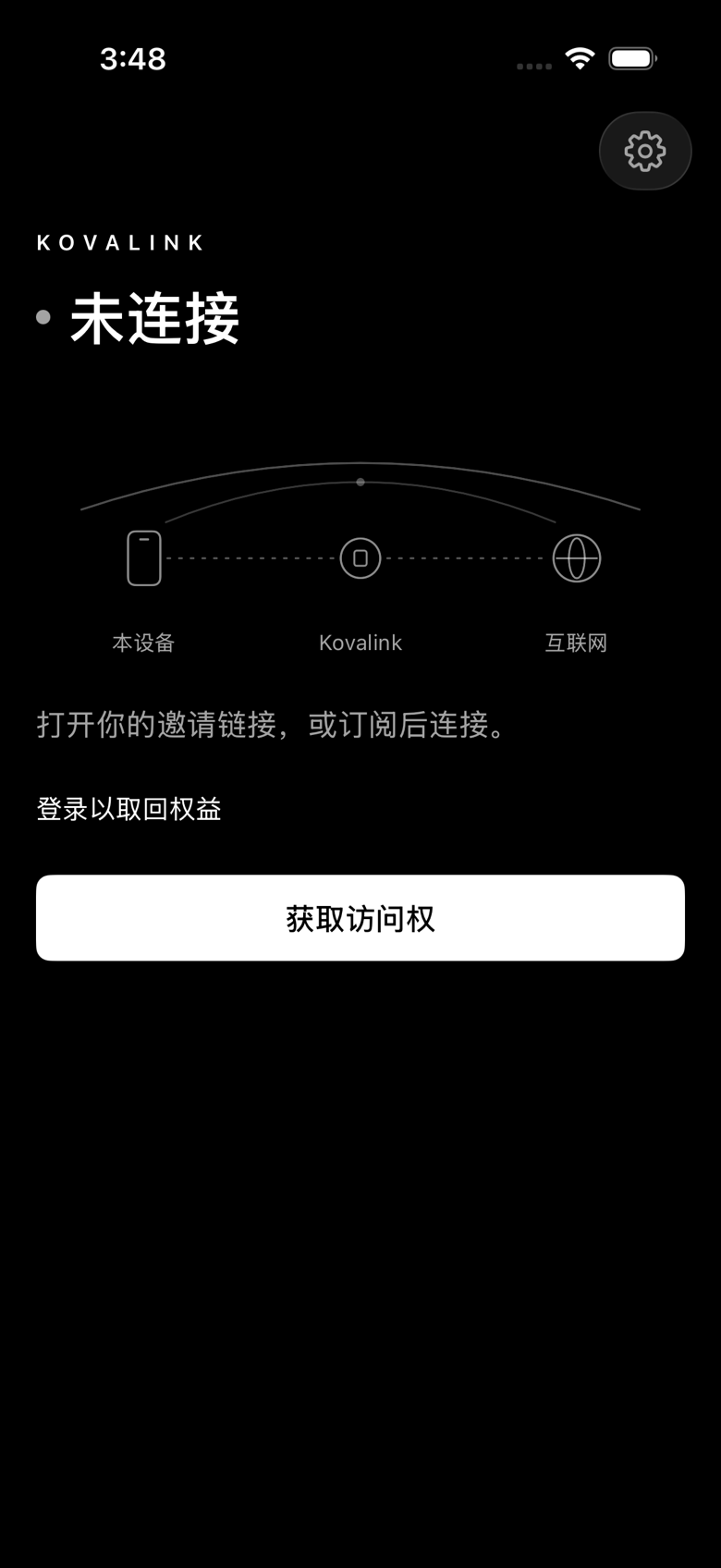
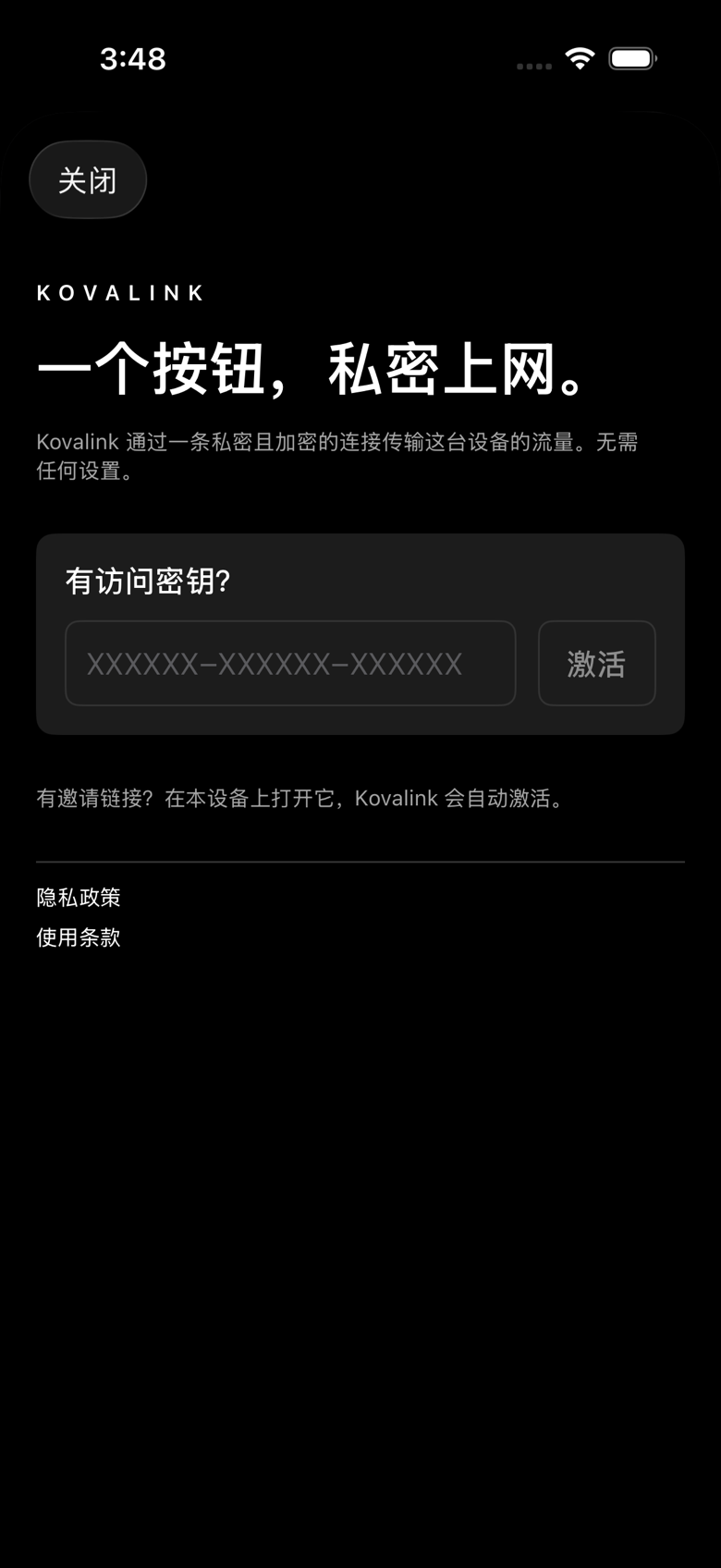
3. 连接
- 点「Connect」。iPhone 会弹出「允许添加 VPN 配置」,点「允许」并用 Face ID 或密码确认。
- Mac 第一次连接会提示「系统扩展已被阻止」:打开 系统设置 → 通用 → 登录项与扩展,找到 Kovalink 并打开,回到 App 再点一次「Connect」,然后允许 VPN 配置。
- 状态变成「Connected」就可以正常上网了。Kovalink 会自动挑选可用的线路,一条不通会自动换下一条。
4. 日常使用
- 切换网络:Wi-Fi 与蜂窝之间切换时,连接会自动恢复,状态可能短暂显示「Reconnecting」。
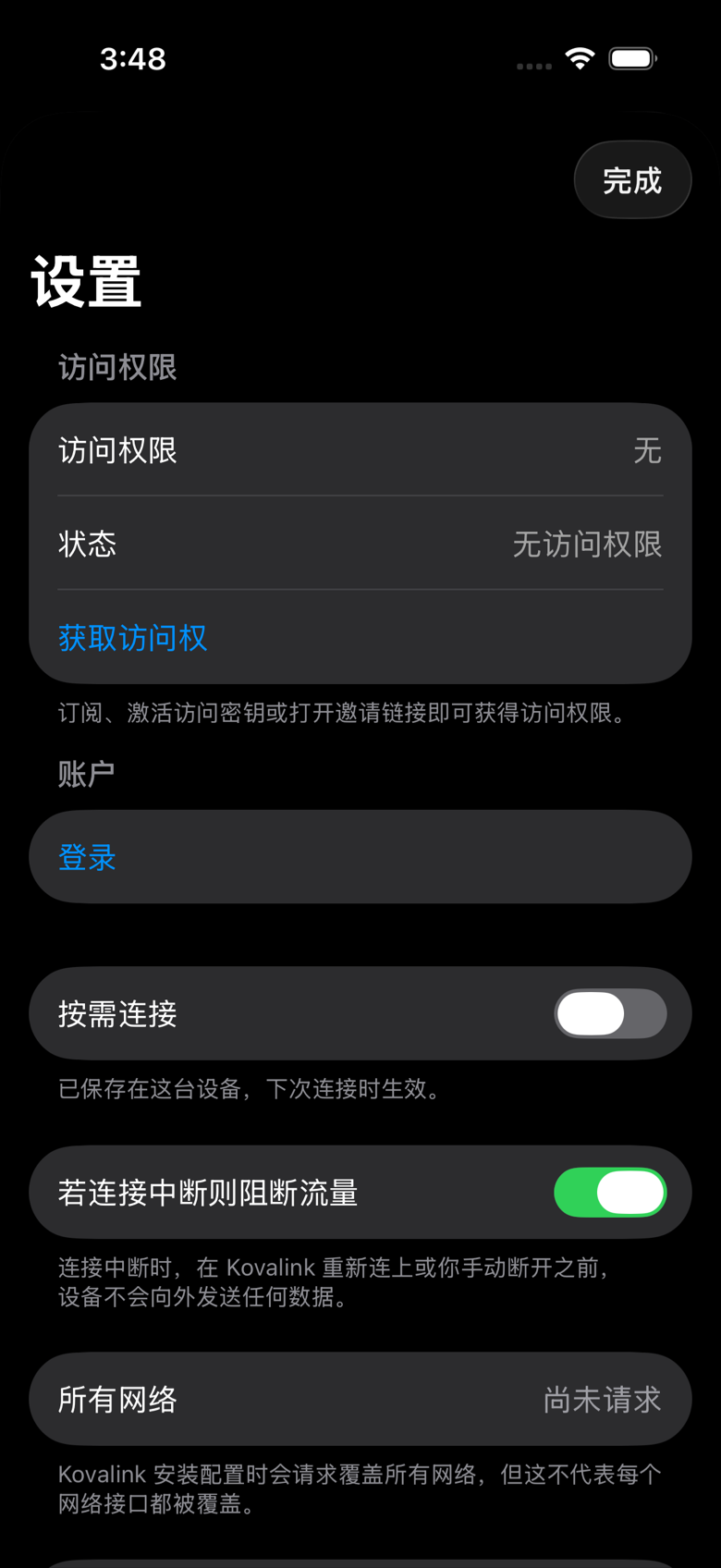
- 断线保护:连接意外中断时,App 会显示「Reconnecting. Nothing leaves this device until Kovalink is back.」(中文界面为对应文案),此时任何网页都打不开。这是故意的,防止流量漏出,几秒后自动恢复。不需要这个保护,可以在设置里关掉「Kovalink 断开时阻断流量」。
- 按需连接:在设置里打开「按需连接」,以后需要联网时系统会自动连上 Kovalink。
- 晚高峰:北京时间 21:00–23:00 线路最拥挤,偶尔变慢属正常。
5. 遇到问题
把下面这些发给我,通常几小时内回复:
- 设备型号 + 系统版本(如 iPhone 15 Pro,iOS 26.1),运营商(如 中国移动 5G)和城市。
- 出问题的时间(精确到分钟)和当时的截图。
- 速度体感:流畅 / 偶尔卡 / 经常卡 / 完全连不上。
- 连不上时:App 主页和设置页各截一张图;iPhone 上再截一张 设置 → 通用 → VPN 与设备管理 里 Kovalink 的状态。
6. 说明
- 用邀请链接开通的账号免费;订阅用户可以随时在 App Store 的订阅管理里取消。
- 你的浏览记录不会被记录;服务器只保留连接次数和流量总量,用于排查问题。
- 服务状态:https://api.kovalink.app/status/
Kovalink User Guide
Three steps: install, sign in, connect. Each step has a screenshot to compare against; if something goes wrong, see the last section.
1. Install
- iPhone / iPad: Install through the TestFlight invite: get TestFlight from the App Store, then open https://testflight.apple.com/join/tMSkMWED and tap "Install". Once Kovalink is on the App Store, simply search for "Kovalink".
- Mac: Open https://kovalink.app/download/mac and the download starts automatically. Open the DMG and drag Kovalink into "Applications". The first time you open it, macOS says it is "from the internet" — click "Open" (the app is notarized by Apple).
2. Sign in
Open Kovalink, tap "Get access", and sign in with an email code (Google and Whop also work). If you received an invite code, paste the invite link right after signing in.
3. Connect
- Tap "Connect". iPhone asks "Allow adding VPN configurations" — tap "Allow" and confirm with Face ID or your passcode.
- The first Mac connection shows "System extension blocked": open System Settings → General → Login Items & Extensions, find Kovalink and turn it on, return to the app and tap "Connect" again, then allow the VPN configuration.
- Once the status reads "Connected", you are online. Kovalink picks a working route on its own and moves to the next one if a route fails.
4. Everyday use
- Switching networks: moving between Wi-Fi and cellular reconnects automatically; the status may briefly read "Reconnecting".
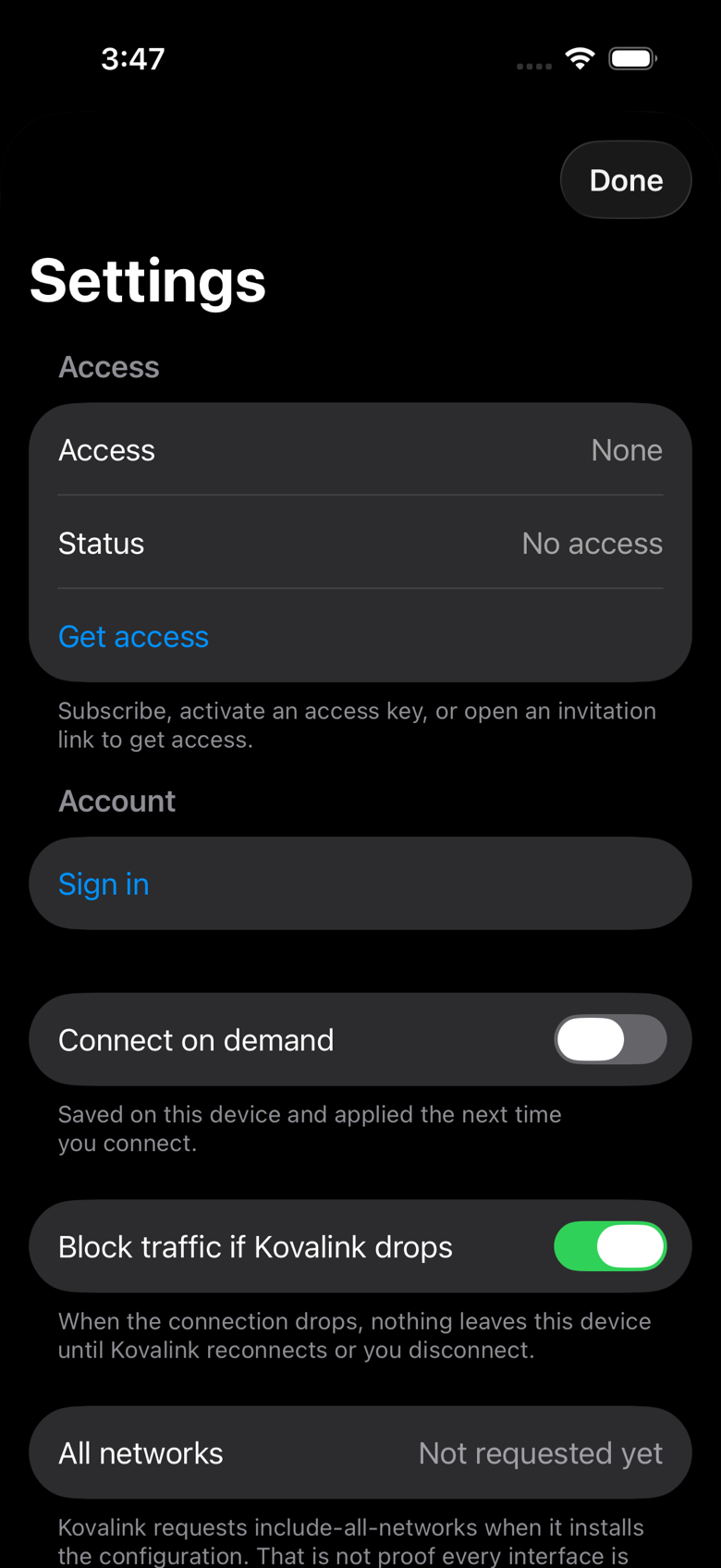
- Kill switch: if the connection drops unexpectedly, the app shows "Reconnecting. Nothing leaves this device until Kovalink is back." and nothing loads until it recovers a few seconds later. That is deliberate, so traffic cannot leak. If you do not want it, turn off "Block traffic if Kovalink drops" in Settings.
- Connect on demand: turn on "Connect on demand" in Settings and the system connects Kovalink whenever you need the network.
- Evening peak: 21:00–23:00 Beijing time is the busiest window; occasional slowdowns then are normal.
5. If something goes wrong
Send me the following; replies usually come within a few hours:
- Device model + system version (for example iPhone 15 Pro, iOS 26.1), carrier, and city.
- The time of the problem (to the minute) and a screenshot from that moment.
- How fast it felt: smooth / occasional stutter / frequent stutter / cannot connect at all.
- If you cannot connect: a screenshot of the app home page and the Settings page; on iPhone also Kovalink's status in Settings → General → VPN & Device Management.
6. Notes
- Accounts activated with an invite link are free; subscribers can cancel anytime in App Store subscription management.
- Your browsing history is not recorded; the servers keep only connection counts and traffic totals for troubleshooting.
- Service status: https://api.kovalink.app/status/